
Alternate & Mix PDF Pages – Interleave PDFs Free
Interleave pages from two or more PDFs, alternating between them. Ideal for merging front and back scans. Free online tool, no watermark.
or drop files here
No files selected
Step by step
Alternate & Mix PDF Pages: step by step
Interleave pages from two or more PDFs, alternating between them. Ideal for merging front and back scans. Free online tool, no watermark.
-
1
Upload your PDFs
Add two or more documents — pages will alternate between them. Sort A–Z or Z–A if the order matters; every file is deleted after 2 hours.
-
2
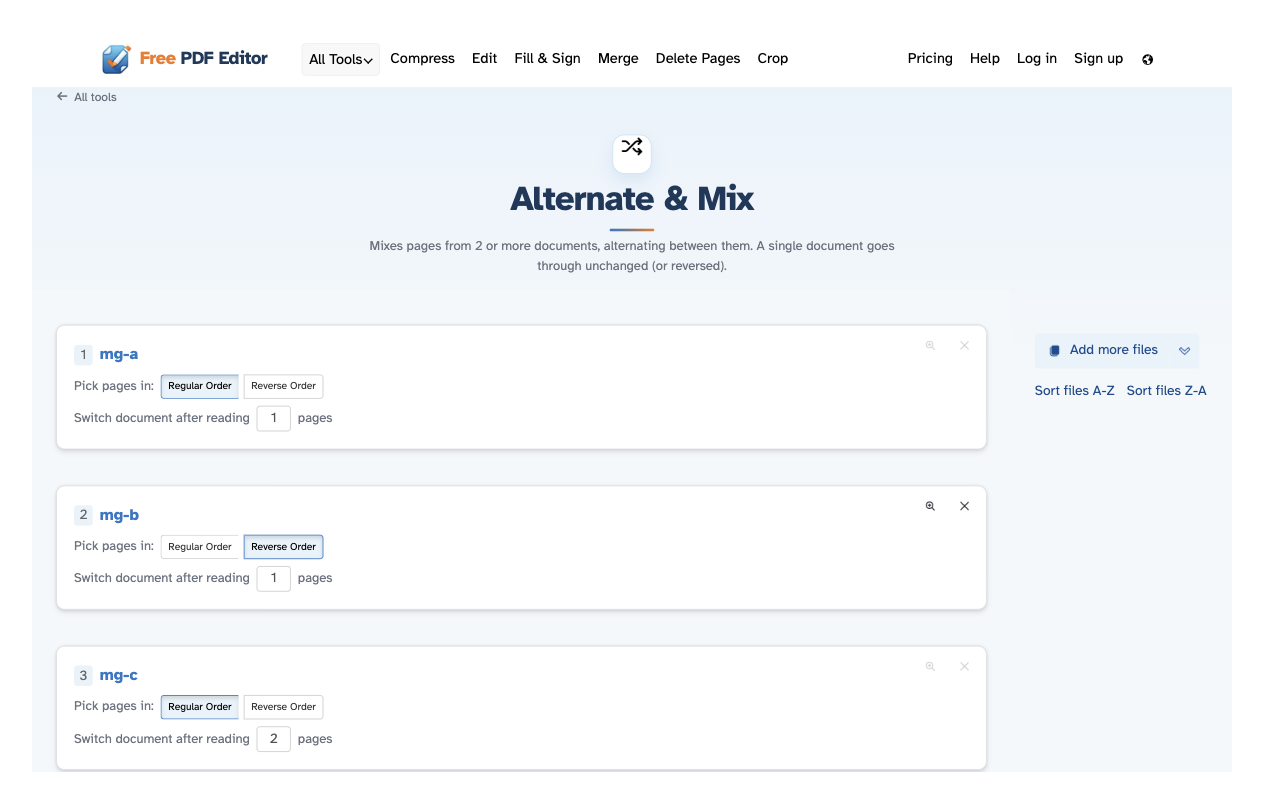
Set how each file reads
For every row: keep Regular Order or switch to Reverse Order, and set how many pages the document reads before the mix moves on — “Switch document after reading 2 pages”. Each row also carries preview and remove.
-
3
Mix and download
Press Mix PDF files and the alternating document opens ready to download, share or print.
-
Alternates between documents
Reads from each file in turn — ideal for interleaving scans, statements or two-language versions.
-
Any cycle length
Switch after N pages: take one page apiece, or read a run from each document before moving on.
-
Reverse any document
Flip a file's page order before it joins the mix — the others stay as they are.
-
Sort in one click
Order the list A–Z or Z–A without dragging anything around.
-
Add files as you go
More files can join at any time — from this computer, the clouds or a web address.
-
Private by default
No account, no watermark — and every file is automatically deleted after 2 hours.
Click pages to select. Shift, Cmd/Command to select multiple.