
Merge PDF Files Online – Combine PDFs Free
Combine multiple PDFs and images into one document in seconds. Drag to reorder, pick pages, download free. No watermark, no install.
or drop files here
No files selected
Step by step
Merge PDF Files: step by step
Combine multiple PDFs and images into one document in seconds. Drag to reorder, pick pages, download free. No watermark, no install.
-
1
Upload your PDFs
Choose your files with the button above, or drag them onto the box. Add as many as you like — the order you drop them in doesn't matter yet, and every file is deleted after 2 hours.
-
2
Arrange the order
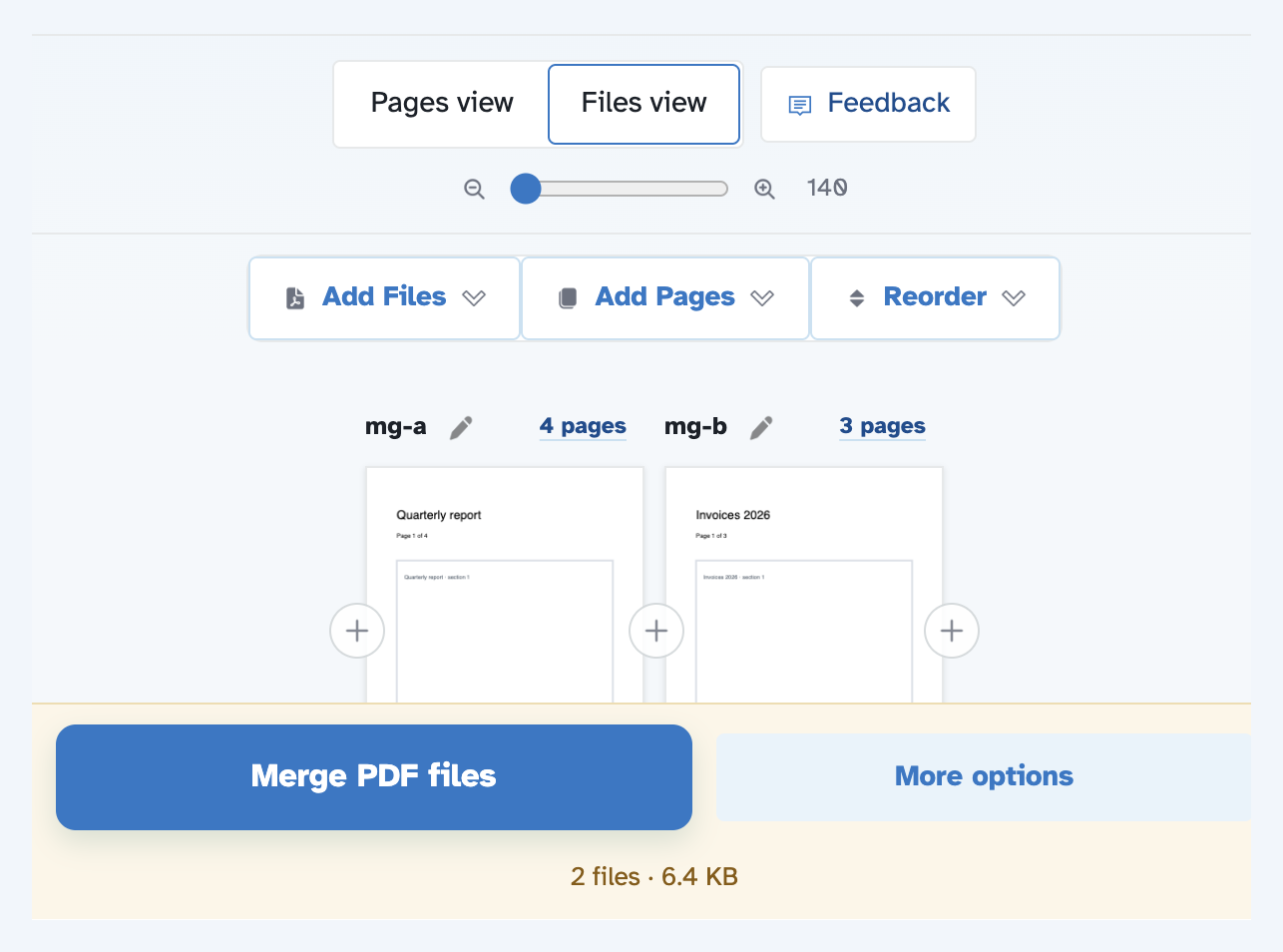
In Files view, drag a whole document into place; switch to Pages view to move a single page instead. Reorder sorts every file by name in one click.
-
3
Choose the pages
Click a file to read it page by page and keep only the pages that join the merge; rotate or duplicate any page. Add Pages drops extra files exactly where you want them.
-
4
Set the details in More options
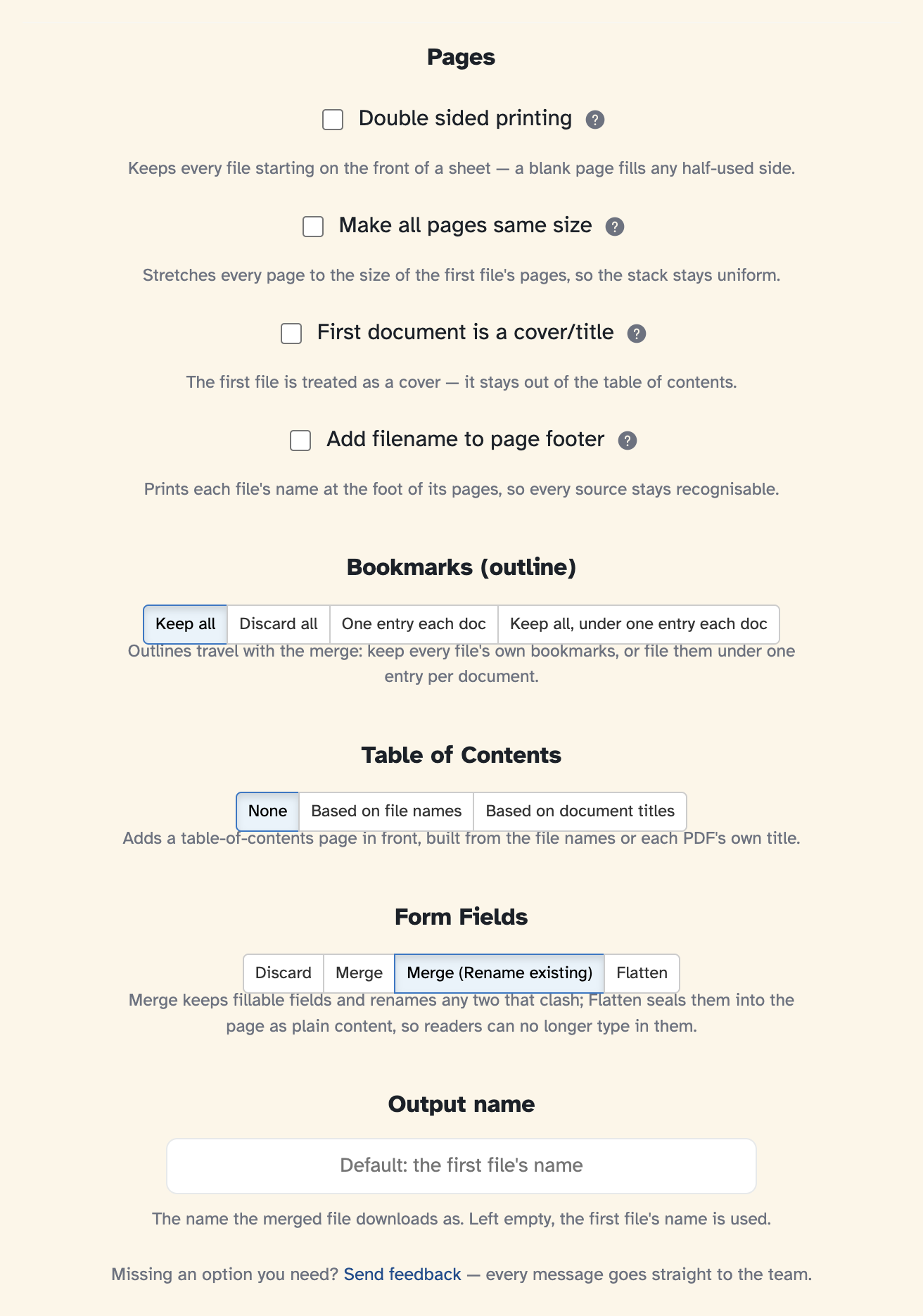
The More options button under the files opens the fine details — each one explained right there: double-sided printing, same-size pages, a cover/title file, filenames in the footer, how bookmarks and the table of contents are built, how fillable form fields are handled, and the name the result downloads as.
Missing an option you need? The panel's Send feedback line — and the Feedback chip up in the bar — goes straight to the team.
-
5
Merge and download
Press Merge PDF files and the finished document opens ready to download, share or print.
Combine multiple PDFs and images into one document in seconds. Drag to reorder, pick pages, download free. No watermark, no install.
-
As many files as you like
Stacks of PDFs become one document — any number of files, any number of pages, in the order you set.
-
Whole files or single pages
Drag full documents around, or open one and take just the pages that belong in the merge.
-
Ready for double-sided
An odd-count document can take a blank page so double-sided printing stays perfectly in step.
-
Fillable forms survive
Keep form fields working, merge duplicates, or flatten them — your choice in More options.
-
Bookmarks and a table of contents
Keep each file's bookmarks, nest them under one entry, or build a fresh table of contents page.
-
Private by default
No account, no watermark — and every file is automatically deleted after 2 hours.
Click pages to select. Shift, Cmd/Command to select multiple.