
Compress PDF Online – Reduce PDF File Size Free
Shrink PDF size without losing quality. Choose a compression level and download the smaller file. Free, no watermark.
or drop a PDF here
No file selected
Private and short-lived: every upload is erased automatically 72 hours after you last open it.
Step by step
Compress a PDF: step by step
Shrink PDF size without losing quality. Choose a compression level and download the smaller file. Free, no watermark.
-
1
Upload your PDF
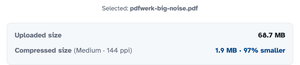
Drop the file and the screen starts measuring at once — the uploaded size on top, and underneath what the settings shown would actually produce. In our test a noisy 68.7 MB scan came out at 1.9 MB. Files are deleted after 2 hours.
-
2
Pick quality & resolution
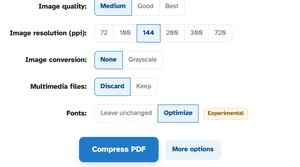
Quality runs Medium, Good or Best; resolution pins pictures to 72–720 ppi — 144 is the balanced pick — and scans can go Grayscale for an even smaller file. Every chip change re-measures the estimate. The extra rows, multimedia and fonts, fold away behind More options.
-
3
Compress & download
Press Compress PDF and the ready page reports the saving right on the file — “97% smaller than the original (68.7 MB)” — with the page count kept and Download one click away.

-
See it before you run it
The inspector runs the real compressor on every settings change — measured, never guessed.
-
Exact resolution
Pictures land on the ppi you pick — 144 means exactly 144, not close to it.
-
Real re-encoding
Pages are rebuilt with your settings rather than just re-saved — that is where the huge savings come from.
-
Grayscale on demand
Switch colour off and scans shrink even further.
-
Forms stay fillable
Interactive form fields survive the squeeze.
-
Private by default
No account, no watermark — and every file is automatically deleted after 2 hours.
Selected: