
Flip PDF – Mirror Pages Horizontally or Vertically
Mirror PDF pages horizontally or vertically in one click. Free online PDF flipper, no watermark, no install.
or drop a PDF here
No file selected
Private and short-lived: every upload is erased automatically 72 hours after you last open it.
Step by step
Flip a PDF: step by step
Mirror PDF pages horizontally or vertically in one click. Free online PDF flipper, no watermark, no install.
-
1
Upload your PDF
Drop in a document and its first page appears in the preview — the sheet mirrors instantly once you pick a direction. Files are deleted after 2 hours.

-
2
Choose the direction
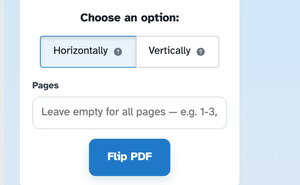
Horizontally mirrors each page left to right — the fix when a scan comes in back-to-front; Vertically mirrors top to bottom. The (?) bubbles explain each, and the preview on the left flips live as you switch.
-
3
Pick pages and run
Leave the Pages box empty to flip the whole document, or name ranges like 1-3,5 to mirror only those. Press Flip PDF — the mirrored pages come back as one ready file.
-
Mirror, instantly
The preview flips the moment you pick a direction — no run needed to check.
-
Left to right
Horizontally reflects each page — the fix for back-side-up scans.
-
Top to bottom
Vertically turns pages upside down when a scan came in inverted.
-
All pages or some
Leave Pages empty to mirror everything, or list ranges like 1-3,5.
-
Only the content mirrors
Pages keep their size and box — the ink simply reflects in place.
-
Private by default
No account, no watermark — and every file is automatically deleted after 2 hours.
Selected:
Choose an option: