
Add Watermark to PDF – Text or Image Free Online
Stamp a text or image watermark on every page of your PDF. Control position, size and opacity. Free online tool.
or drop a PDF here
No file selected
Private and short-lived: every upload is erased automatically 72 hours after you last open it.
Step by step
Watermark a PDF: step by step
Stamp a text or image watermark on every page of your PDF. Control position, size and opacity. Free online tool.
-
1
Upload your PDF
Drop in a document and the watermark editor opens with a sample mark already on page 1. Three ways to start: Add Text writes a watermark, Add Image places your logo or a stamp, and Templates brings back a setup you saved before. Files are deleted after 2 hours.

-
2
Make it yours
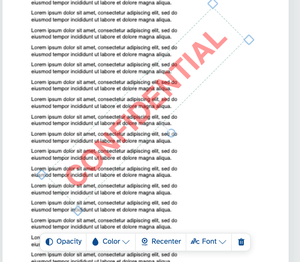
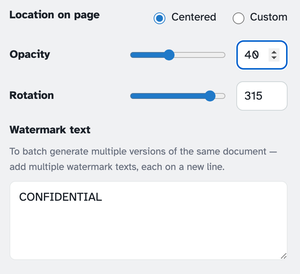
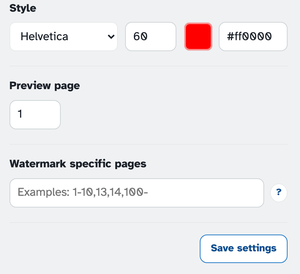
Click the mark on the page to type your own words right in place, or write in the Watermark text box — one text per line makes a version for each, for batch runs. The strip on the mark adjusts Opacity, Color, Recenter and Font; the panel sets Location on page (Centered, or Custom with edge distances), Rotation, and Style — font, size and colour.
-
3
Pick pages and apply
Leave it on every page, or name ranges like 2-3,5 — perfect for stamping “Draft” on one section. Preview page flips the editor to the sheet you want to check. Press Watermark PDF and the stamped file comes back ready to download; Save settings remembers the whole setup for next time.

-
Type it in place
Click the mark and type — you edit the watermark right on the page.
-
Text or image
Write a word, or place a logo or stamp picture as the watermark.
-
Any colour, any fade
Pick from the palette or paste a hex, and set the opacity from 1 to 100.
-
Rotate freely
0–360° — the classic diagonal, or any angle your stamp needs.
-
Saved templates
Set the watermark up once, name it, and reuse it on any document in one click.
-
Private by default
No account, no watermark — and every file is automatically deleted after 2 hours.
Selected:
To batch generate multiple versions of the same document — add multiple watermark texts, each on a new line.
Click to edit
1 leaves the single mark. 4, 9, 16 … spread the copies evenly; any number works.