
Create Fillable PDF Forms – Free PDF Form Creator
Turn any PDF into a fillable form with text fields, checkboxes and dropdowns. Free online PDF form creator, no watermark.
or drop a PDF here
or start with a blank document
Private and short-lived: every upload is erased automatically 72 hours after you last open it.
Step-by-step guide
Create a Fillable Form: step by step
Turn any PDF into a fillable form with text fields, checkboxes and dropdowns. Free online PDF form creator, no watermark.
-
1
Upload your PDF and pick a field type
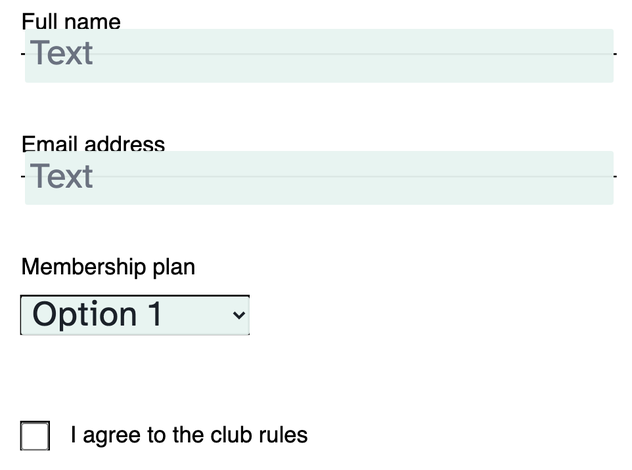
Choose a file above. The field bar holds everything a reader will use: Text for single lines, Multiline for paragraphs, Radio and Checkbox for ticks, Dropdown for menus and Signature for signing — each one is a live control, so you can type and toggle as you build.

-
2
Click to drop fields — then name them
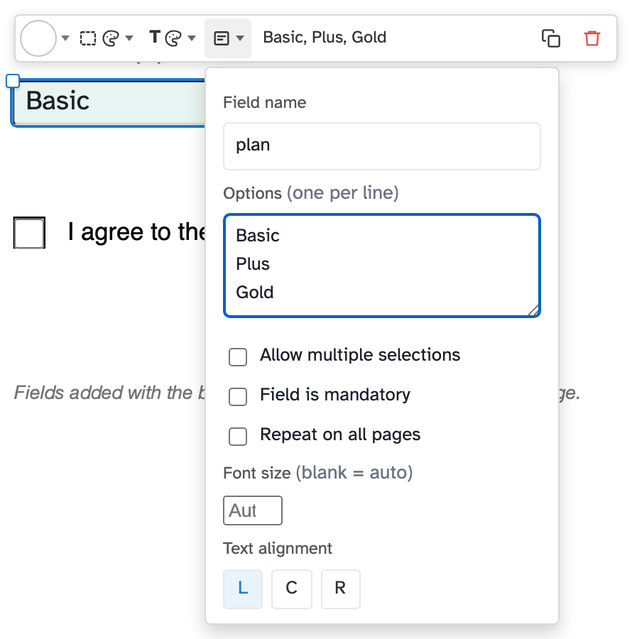
Click where a field belongs — or drag to draw it at its exact size. Drag a field by its handle to move it. Click one and open its properties to set the field's name, list dropdown options one per line, or mark it mandatory — Repeat on all pages puts a copy on every sheet.
-
3
Publish it, or save the file
Got a static paper form? Auto-detect fields turns its boxes and lines into fillable fields automatically, and Reorder sets the tab order readers move through. Publish hands out a link that opens the form ready to fill and sign. Save keeps the draft; Save and Continue finishes the file — any PDF viewer can then fill it in.
Legal stamp paper
Start from your stamp paper — one sheet: take a photo or scan, use the e-stamp PDF from the portal, or print our template.
- Your stamp paper — the side carrying the stamp: a purchased e-stamp PDF, or a clear photo or scan. A stamp paper is one sheet — no back page.
A photo opens the scan room first (crop + effects), so the paper comes out straight and clean.
Upload your stamp paper
A photo opens the scan room — drag the corners, pick an effect, then “Use this”.
Dummy page
Pages you add later (Insert page) use this size and colour — the stamp paper keeps its own.
Files added here are embedded inside the PDF. Readers open them from their attachments pane.
Every applied change for this document, newest first.
Create signature
Use a photo or scan of your signature on a plain background.
Sign on paper, then hold it up to the camera.
Rifinit does not guarantee that the signature provided through this tool is legally binding.
Add image
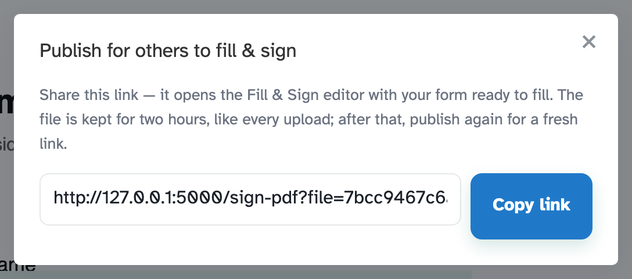
Publish for others to fill & sign
Share this link — it opens the Fill & Sign editor with your form ready to fill. The file is kept for two hours, like every upload; after that, publish again for a fresh link.
Blank page
Prepare your scan
Check the crop over your paper — drag a corner to adjust it, then choose an effect.
Finding the paper edges…
Create stamp
Link properties
Where should this open?
Tab order — Form fields
Custom order — drag and drop below to reorder.
Fonts
Keyboard shortcuts
Toolbar guide
Every button in this editor — what it is and how to use it. The list is read off the toolbar you actually have, so it matches this page.
Edit existing text
Finds this text in the PDF and replaces it. Works on text-based PDFs; scans (images) cannot be edited.
Send feedback
Tell the team what worked, what broke, or what you want next. Photos of the screen help more than anything else.
More tool information
What the other tools do
BETAE-Sign
Sends a PDF out for signature and collects the results in order: named signers, the fields each one must complete, and a sealed copy with a completion certificate when everyone has signed. It is one of the two account-only products.
Edit PDF
The full editing workspace: retype existing text in place, add text, images, stamps, shapes, whiteout and signatures, draw highlights and freehand marks, and place links or form fields. Editing an existing line keeps its font, size and colour instead of replacing it with a lookalike.
Fill & Sign
Opens the editor with the signing tools in front: draw, type or upload a signature, add date and initials, and fill the document's interactive form fields in the same pass.
PDF to Excel
Finds the tables on each page and writes them into Excel or CSV, ready to sort and calculate. Three modes cover automated detection, a styled layout, and tables-only output.
Keep reading
Related Blog Posts
- Edit & Sign Make a Fillable PDF Form From a Flat Page Turn a printed form into a fillable one: text fields, dropdowns, checkboxes, radio groups and signature fields, placed where the paper expects.
- How-to How to Edit Text in a PDF (Without Rebuilding the File) Why PDFs resist editing, the three honest ways around it, and when converting to Word beats editing in place.