
Flatten PDF – Make Fillable Forms Non-Editable Free
Flatten fillable PDF forms and annotations into permanent read-only content. Print-and-scan in one step. Free online.
or drop a PDF here
No file selected
Private and short-lived: every upload is erased automatically 72 hours after you last open it.
Step by step
Flatten a PDF: step by step
Flatten fillable PDF forms and annotations into permanent read-only content. Print-and-scan in one step. Free online.
-
1
Upload your PDF
Drop in the fillable form or annotated document you want to lock down. The screen takes it from there — no settings are needed before the file is in. Files are deleted after 2 hours.
-
2
Choose what to flatten
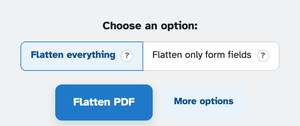
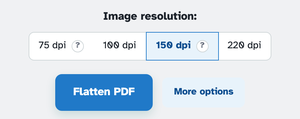
Flatten everything renders every page to a picture — form fields, annotations and text all become part of the image; it is print & scan in one step. Flatten only form fields bakes the widgets — our filled form's “Dana Tester” came back as plain text — while text, images and annotations stay as they are. Behind More options sit the image-resolution steps.
-
3
Flatten & download
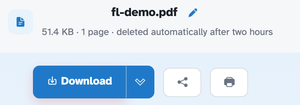
Press Flatten PDF and the rebuilt file lands on the ready page — page count kept, Download right there. In our one-page membership form the fields came out uneditable either way: baked into the content in one mode, one flat image in the other.
-
Fields become content
Only form fields bakes the widgets — filled values included — so the file stops being fillable.
-
Rasterise everything
Flatten everything turns each page into a picture — fields, annotations and text in one image.
-
Print & scan shortcut
The everything mode is the modern photocopier — a flat, uneditable copy in one run.
-
Resolution on tap
75, 100, 150 or 220 dpi behind More options — 150 is the balanced default.
-
Page count kept
One page in, one page out — the document's structure is preserved.
-
Private by default
No account, no watermark — and every file is automatically deleted after 2 hours.
Selected:
Choose an option:
Image resolution: