
Add Bookmarks to PDF – Edit PDF Outline Free
Create, modify or remove bookmarks in your PDF outline for easy navigation. Free online bookmark editor.
or drop a PDF here
No file selected
Private and short-lived: every upload is erased automatically 72 hours after you last open it.
Step by step
Create PDF Bookmarks: step by step
Create, modify or remove bookmarks in your PDF outline for easy navigation. Free online bookmark editor.
-
1
Upload your PDF
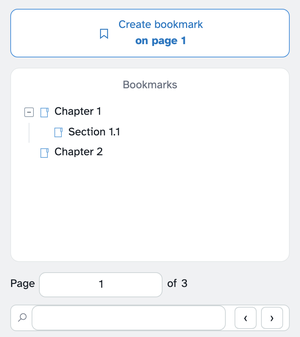
Drop in a document and its existing outline appears as a tree — chapters with sub-sections folded underneath — with a count beside the Bookmarks heading. No outline yet? Create bookmark on page 1 starts one, anchored to whatever page you're viewing. Free-tool files are deleted within 72 hours.
-
2
Shape the tree
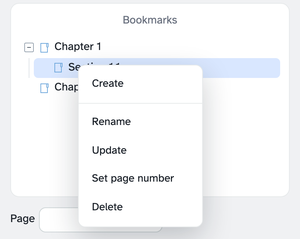
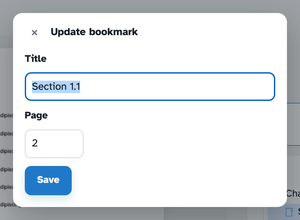
Right-click any row: Create adds a child, Add sibling before and Add sibling after slot a row in beside it, Rename edits inline (a double-click works too), Update opens the title-and-page dialog, Set page number retargets without touching the name, and Delete removes it. Drag rows to reorder them, or drop one onto another to nest it. The Add menu beside the heading does the same three placements with no right-click, and the arrows there expand or fold the whole tree at once.
-
3
Search, jump and apply
The Page box jumps the preview anywhere in the document; the search box highlights matches on the page and the ‹ › arrows step through them — click a highlighted line and the Add dialog opens prefilled with its text and page. You can also click any line of text on the page, highlighted or not, to start a bookmark from it; the dialog's Parent bookmark box decides where the new row lands. Apply changes writes the whole tree into the file as its real outline, ready for any reader's sidebar.
-
Live outline tree
Chapters nest with sections; the tree redraws the moment you edit.
-
Right-click anything
Create, Rename, Update, Set page number, Delete — one menu on every row.
-
Drag to shape
Reorder bookmarks by dragging; drop one onto another to nest it.
-
Search & jump
Matches highlight on the page — click one and the Add dialog opens prefilled.
-
Baked into the file
Apply changes writes a real PDF outline every viewer shows in its sidebar.
-
Private by default
No account, no watermark — and every file is automatically deleted after 2 hours.
Selected:
Bookmarks 0
Press + on a bookmark to add a sub-bookmark under it.
Lists every bookmark and sub-bookmark with its page number. The contents page is added before page 1, so the page numbers shown in it count the contents page.