
Delete Pages from PDF – Remove PDF Pages Free
Remove unwanted pages from a PDF in seconds. Click the thumbnails or type a range, then download. Free online, no watermark.
or drop a PDF here
No file selected
Private and short-lived: every upload is erased automatically 72 hours after you last open it.
Step by step
Delete Pages From a PDF: step by step
Remove unwanted pages from a PDF in seconds. Click the thumbnails or type a range, then download. Free online, no watermark.
-
1
Upload your PDF
Drop in a document and every page appears as a thumbnail, with a zoom slider to size them. Files are deleted after 2 hours.
-
2
Mark the pages to remove
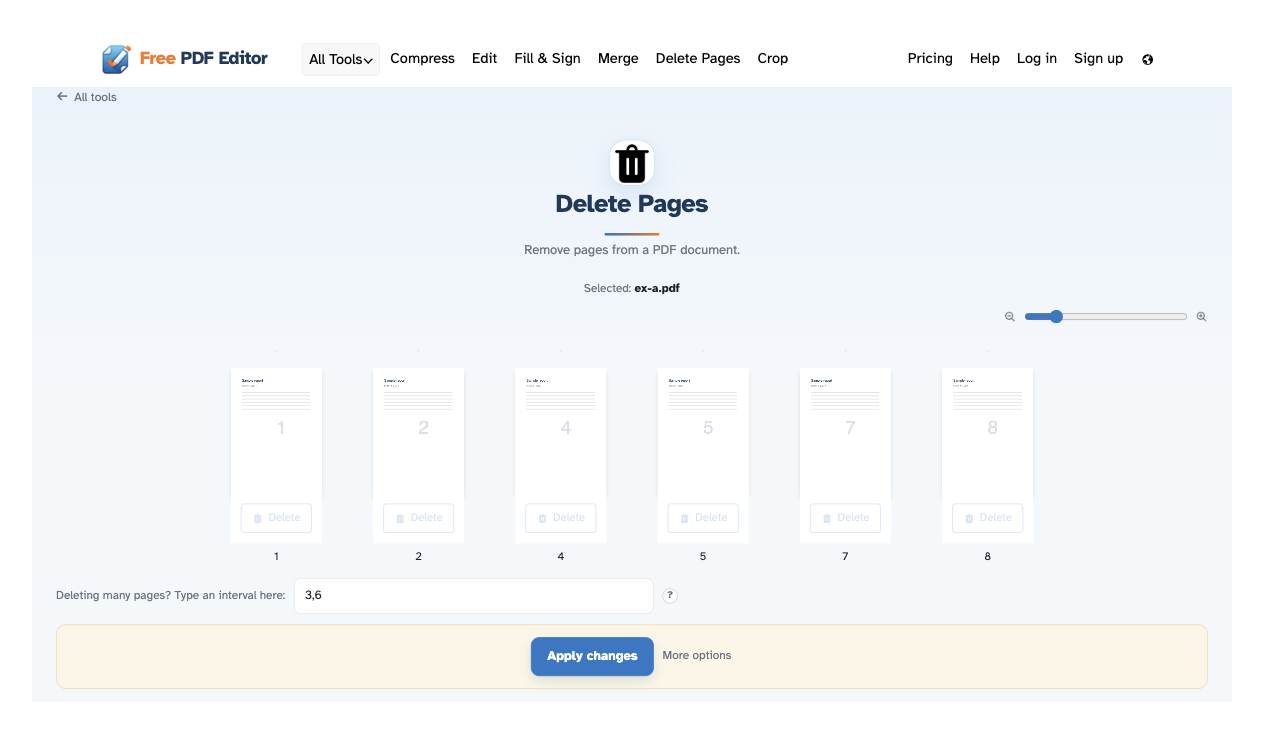
Every page carries its own Delete link — click it and the page leaves the list at once, its number written into the box below. Deleting many? Type an interval like “1-10,15,20-” — it adds to the pages you already marked.

-
3
Apply changes
Press Apply changes and confirm — the trimmed document opens ready to download, share or print.
-
Delete one by one
Each sheet's own Delete link takes it off the list the moment you click — no dialog per page.
-
Or type an interval
“1-10,15,20-” in the box marks whole runs at once, and adds to whatever you clicked.
-
One confirmation, then done
Nothing is written until Apply changes — the confirm step shows exactly what will go.
-
Zoom before deciding
The slider sizes every preview from 100% to 400%, so you check a page before removing it.
-
Bookmarks handled too
More options can discard the bookmarks and outline along with the pages you remove.
-
Private by default
No account, no watermark — and every file is automatically deleted after 2 hours.
Selected:
Choose an option
Filenames (0):