
Word to PDF Converter – Convert DOCX to PDF Free
Create a PDF from a Microsoft Word .docx file and keep fonts and layout intact. Free online converter, no watermark.
or drop a Word file here
No file selected
Private and short-lived: every upload is erased automatically 2 hours after you last open it.
Step by step
Convert Word to PDF: step by step
Create a PDF from a Microsoft Word .docx file and keep fonts and layout intact. Free online converter, no watermark.
-
1
Upload your Word file
docx, doc, odt or rtf — from your computer, or from Dropbox, Google Drive and OneDrive through the caret beside the upload button. The free service takes up to 200 pages or 50 MB per document. Files are deleted after 2 hours.
-
2
Convert to PDF
One green action once the file is in — the screen shows which document is about to travel: Selected: wd-out.docx in our run.

-
3
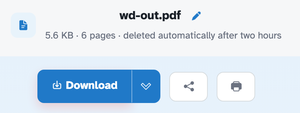
Download the PDF
In our test the six-page Word document came back as a 6-page PDF — the text fully selectable, “Quarterly Report” and all, Download right there.
-
Word in, PDF out
docx, doc, odt or rtf — the result is a standard PDF anyone can open.
-
Text stays selectable
The words remain real text, not pictures.
-
Page count kept
Six pages in our test came back as a six-page PDF.
-
From anywhere
Your computer, Dropbox, Google Drive or OneDrive.
-
Free up to 200 pages
50 MB per document and three tasks per hour on the free service.
-
Private by default
No account, no watermark — and every file is automatically deleted after 2 hours.
Selected: