
Rotate PDF Pages – Save Rotation Permanently Free
Rotate one page or the whole PDF by 90, 180 or 270 degrees and save it permanently. Free online PDF rotator, no watermark.
or drop a PDF here
No file selected
Private and short-lived: every upload is erased automatically 72 hours after you last open it.
Step by step
Rotate a PDF: step by step
Rotate one page or the whole PDF by 90, 180 or 270 degrees and save it permanently. Free online PDF rotator, no watermark.
-
1
Upload your PDF
Drop in a document and every page appears as a large thumbnail — the zoom starts at 400% so one sheet fills the view. Files are deleted after 2 hours.
-
2
Turn the pages
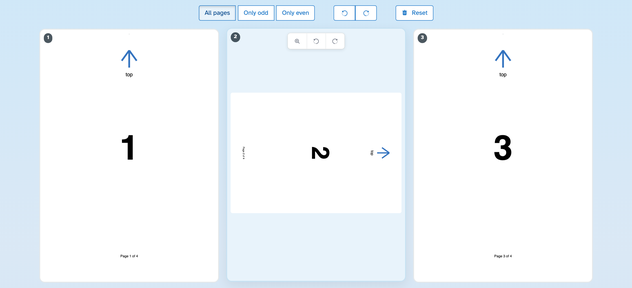
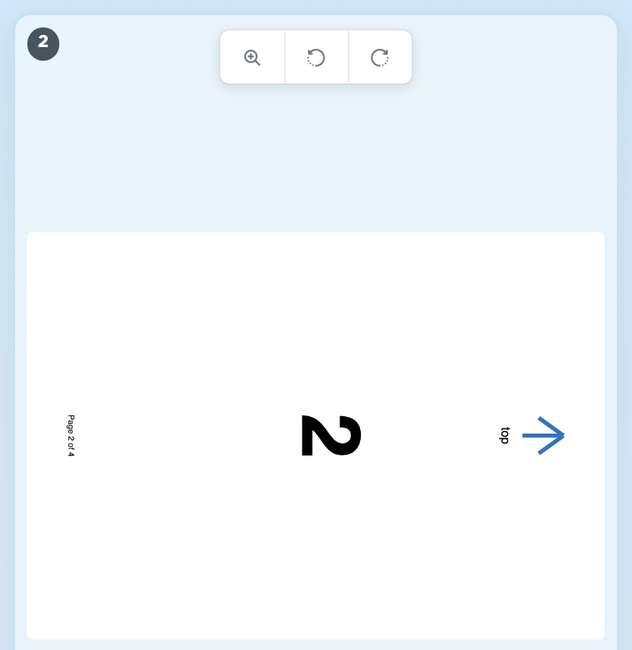
Choose a scope — All pages, Only odd, Only even — then press ↺ or ↻ to turn every page in it one step at a time. To fix a single sheet, hover its card and use the little ↺ / ↻ buttons there (or just tap the card itself to turn it right). Turned pages wear a soft wash, so nothing slips by; four clicks bring a page back around.
-
3
Save the file
Press Apply changes and a new PDF is written with the turns built in — every page opens in its new orientation everywhere. Reset above the pages clears the turns before you run.

-
Turn everything at once
Scope to All pages, Only odd or Only even and one click turns them all one step.
-
Fix single sheets
Every card carries its own ↺ / ↻ buttons — click until the page reads right.
-
One click, one quarter turn
Each press is 90°; four bring a page back around to where it started.
-
See what is turned
A soft wash marks every turned page, and the sheet on its card shows the new angle.
-
Enlarge any page
The magnifier opens the sheet big, turned the way its card is turned.
-
Private by default
No account, no watermark — and every file is automatically deleted after 2 hours.
Selected:
Choose an option
Filenames (0):