
Remove Annotations from PDF – Delete Comments Free
Batch remove highlights, strikeouts, comments and other annotations from a PDF. Free online tool, no watermark.
or drop a PDF here
No file selected
Private and short-lived: every upload is erased automatically 72 hours after you last open it.
Step by step
Remove Annotations: step by step
Batch remove highlights, strikeouts, comments and other annotations from a PDF. Free online tool, no watermark.
-
1
Upload your PDF
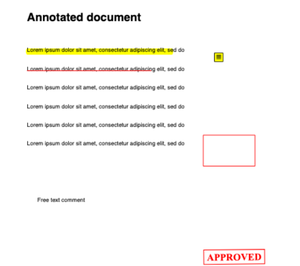
Drop in a document and its marks show up on the sheet — highlights, strikeouts, sticky notes, shapes, free text and stamps, just as a reader would see them. Files are deleted after 2 hours.
-
2
Pick the types
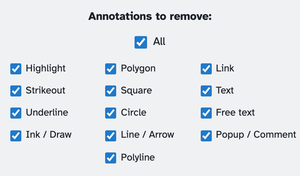
All thirteen types are ticked to start: Highlight, Strikeout, Underline, Ink / Draw, Polygon, Square, Circle, Line / Arrow, Polyline, Link, Text, Free text and Popup / Comment. The All box rules them — untick any single type and All unticks itself; click All to sweep them all back on.
-
3
Name pages and run
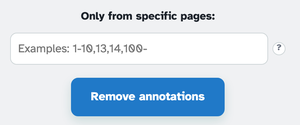
Only from specific pages takes ranges like 1-10,13,14 — a trailing dash opens to the end of the document (12- means page 12 onwards) — or leave it blank for every page. Press Remove annotations and the cleaned file comes back ready to download. Stamps stay put: they're artwork, not annotations.
-
Thirteen types
Highlights and ink to links, notes and popups — each one a tick of its own.
-
All, in one tick
The master box arms or disarms every type at once — and follows your single ticks.
-
Pages or everything
Ranges like 1-10,13,14 — a trailing dash means “to the end.”
-
Links too
Clickable links are annotations as well — sweep them away with the rest.
-
Stamps stay put
Stamps are artwork rather than annotations — they survive the sweep untouched.
-
Private by default
No account, no watermark — and every file is automatically deleted after 2 hours.
Selected:
Annotations to remove:
Only from specific pages: