
Convert PDF to Grayscale – Black & White PDF Free
Turn colour PDFs into grayscale to save ink and reduce file size. Free online converter, no watermark, no install.
or drop a PDF here
No file selected
Private and short-lived: every upload is erased automatically 72 hours after you last open it.
Step by step
Convert a PDF to Grayscale: step by step
Turn colour PDFs into grayscale to save ink and reduce file size. Free online converter, no watermark, no install.
-
1
Upload your PDF
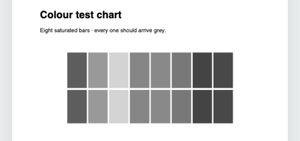
Drop in a document and its first page appears with the greying already applied — even eight saturated colour bars arrive grey. The preview shows exactly what the saved file will look like. Files are deleted after 2 hours.
-
2
Tune the conversions (optional)
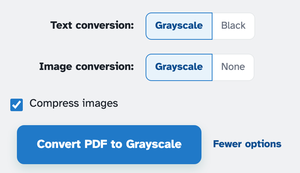
More options folds out the switches: Text conversion — Grayscale, or Black for binarised, scan-crisp type. Image conversion — Grayscale, or None to keep photos and artwork in colour while the text still converts. Compress images is on by default and slims the result as it goes.
-
3
Run it
Press Convert PDF to Grayscale — the greyscale is baked into the file itself, so it stays grey in every viewer, printer and archive. The finished document comes back ready to download.
-
Live preview
The page greys the moment a file loads — no run needed to check.
-
Text: grey or black
Grayscale keeps the tones; Black binarises for the crispest scan-like type.
-
Images: grey or keep
Grey the pictures too, or choose None and only the text converts.
-
Compress images
On by default — the greyscale pass also slims the pictures as it goes.
-
Baked in, not a filter
The output really is greyscale — every viewer shows it the same, black ink and all.
-
Private by default
No account, no watermark — and every file is automatically deleted after 2 hours.
Selected: