
Crop PDF – Trim Margins & Page Area Online Free
Trim PDF margins or change the visible page area. Crop one page or all pages at once. Free online, no watermark.
or drop a PDF here
No file selected
Step by step
Crop a PDF: step by step
Trim PDF margins or change the visible page area. Crop one page or all pages at once. Free online, no watermark.
-
1
Upload your PDF
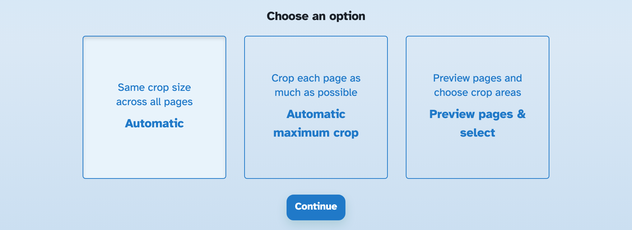
Drop in a document and the crop screen opens with three ways to work. Files are deleted after 2 hours.
-
2
Choose how to crop
Automatic trims the same box of margins on every page — one clean size all through. Automatic maximum crop hugs each page's own content, as tight as it can. Preview pages & select hands you the box to adjust.
-
3
Fine-tune and crop
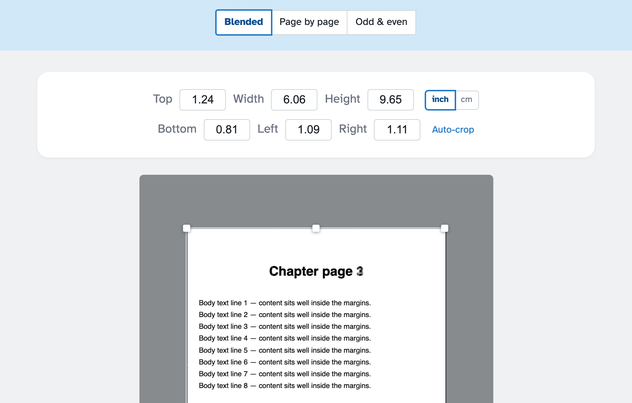
The box opens already hugging the page's content — drag it or its handles, or type Top / Width / Height / Bottom / Left / Right in inch, cm or points; Auto-crop snaps it back to the ink at any time. Blended keeps one box over every page, Page by page gives each page its own (Apply to all copies it down the stack), and Odd & even keeps a box per side of a spread. Press Crop PDF — content outside the box is hidden, not deleted.
-
Three ways in
One automatic trim for all pages, a tight per-page trim, or hand-picked areas.
-
Type or drag the box
Drag the box and its handles on the page, or type exact values in inch, cm or points.
-
Auto-crop
One click snaps the box back to the page's own content — used when the editor opens.
-
One box, per page, or odd & even
Blended, Page by page and Odd & even previews — Apply to all copies a page's box down the stack.
-
Hidden, not deleted
Content outside the crop area is hidden but stays in the file — the screen says so itself.
-
Private by default
No account, no watermark — and every file is automatically deleted after 2 hours.
Selected:
Choose an option
Selected:
Preview mode
Content outside the crop area is hidden but not completely removed from the document
Private and short-lived: every upload is erased automatically 72 hours after you last open it.