PDF compression, measured on real files
Compression advice is usually written as if every PDF were the same. It is not: a text report and a 150 dpi scan respond to the same setting in completely different ways. So we ran the shipped Rifinit engine against three generated documents and wrote down what actually came out. Every figure below is from a real run on 10 November 2026, and the samples are linked at the end so you can reproduce them.
How the test was built
- text-20-pages — 20 A4 pages of ordinary body text, no images.
- photo-5-pages — five pages each carrying a 1600×1200 photo-like JPEG plus a caption.
- scan-10-pages — ten image-only pages, rendered at 150 dpi and embedded like a scan (no text layer).
The engine path is the portable build: pypdf with PyMuPDF re-encoding the images. Compression ran at its default 144 ppi unless a row says otherwise. Sizes are the whole output file, not per page.
What each level actually saves
| Sample | Original | Low | Medium | Best |
|---|---|---|---|---|
| 20-page text | 15 KB | 11 KB | 11 KB | 11 KB |
| 5 photo pages | 1,227 KB | 185 KB | 244 KB | 473 KB |
| 10-page scan | 2,274 KB | 953 KB | 1,108 KB | 1,794 KB |
Two things stand out. The text document barely moves — 15 KB to 11 KB — because there are no images to re-encode; compressing text-heavy PDFs is mostly housekeeping. The photo pages drop to a sixth of their size at Low (185 KB from 1,227 KB) because the JPEG quality is doing the work. The scan lands in between and never reaches the photo result, because each page is one big image that is already fairly efficient.
Resolution is the bigger lever
At Medium, changing only the target resolution:
| Sample | 96 ppi | 144 ppi | 200 ppi |
|---|---|---|---|
| 5 photo pages | 117 KB | 250 KB | 442 KB |
| 10-page scan | 609 KB | 1,135 KB | 1,234 KB |
| 20-page text | 12 KB | 12 KB | 12 KB |
For scans, dropping from 200 to 96 ppi cut the file almost in half again — more than the Low/Medium quality switch did. If a document is going to be read on screen, resolution is the first knob to try; pick the lowest ppi at which the smallest text in the document is still readable.
Exporting pages as images
The same page exported at the three resolutions the tool offers (page 1 of the text sample, JPEG at quality 88):
- 75 dpi — 621×877 px, 68 KB
- 150 dpi — 1,241×1,754 px, 207 KB
- 220 dpi — 1,819×2,573 px, 359 KB
For a screen-only preview, 75 dpi is enough and one third the bytes. For anything that will be printed, 150 dpi is the practical floor; 220 dpi is for small type and fine rules, not for ordinary body text.
Text extraction
The 20-page text sample extracted 26,191 characters in 0.066 seconds on the test machine. That number matters for the "PDF to Text" workflow: the cost is dominated by opening the document, not by the words, so a longer report takes almost the same time as a short one.
What this test does not prove
These are generated files, not the awkward documents that arrive in real work: a 40 MB phone scan with a shadow down one side, a form with a tinted background, a PDF whose images are already JPEG at quality 60 (which cannot be improved by re-encoding). Those are the cases where the range is wider than the table above, in both directions. The method is what generalises: change one setting, measure the file, and look at the smallest text before accepting the result. Open Compress PDF to try it on your own file, or export a page as an image.
Reproduce it
The three samples are generated by us and free to download: text-20-pages.pdf, photo-5-pages.pdf, scan-10-pages.pdf. The script that built them and ran the engine is in the project repository as tools/blog_benchmarks.py; it writes the raw numbers to docs/benchmarks/latest.json.
From the running app
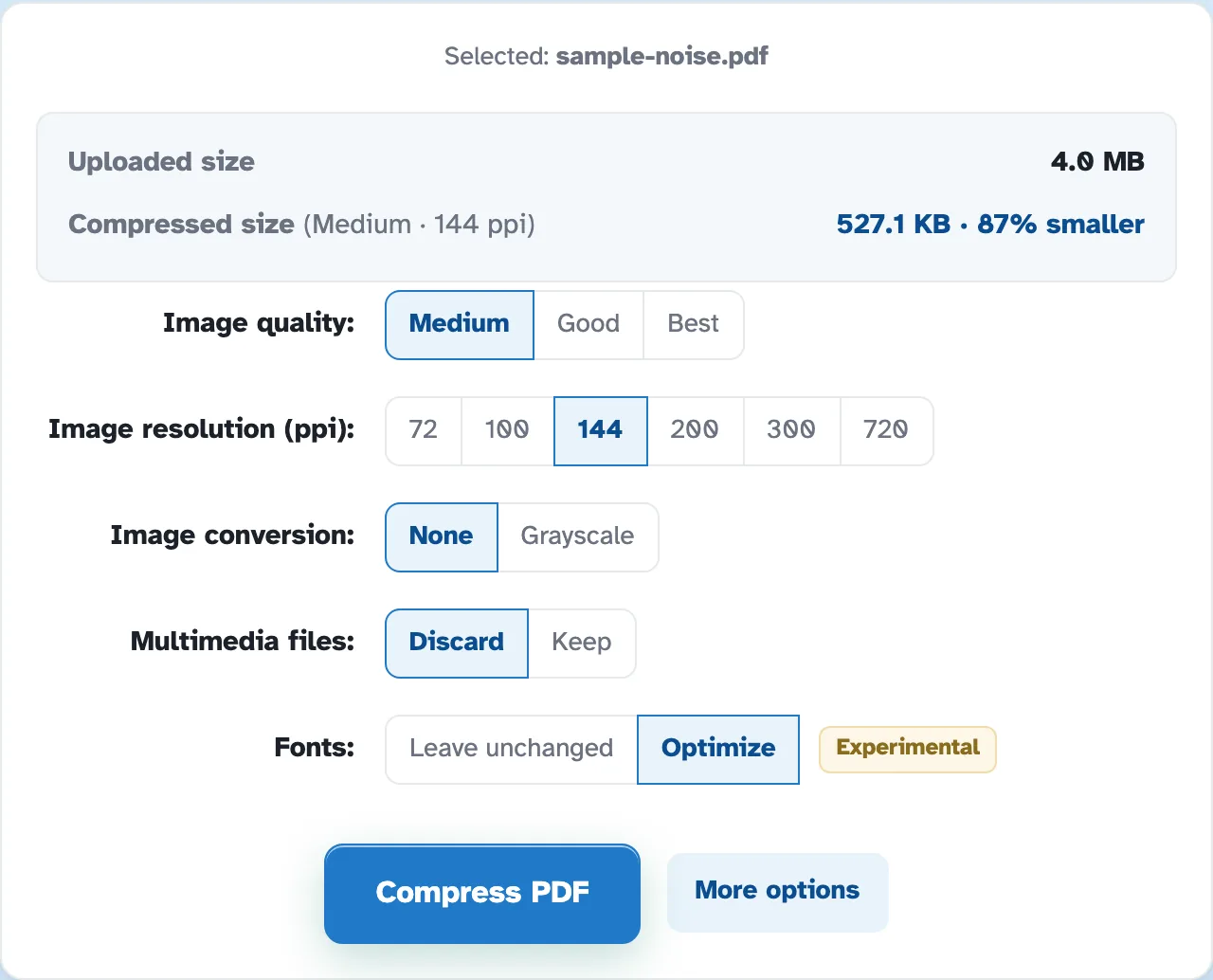
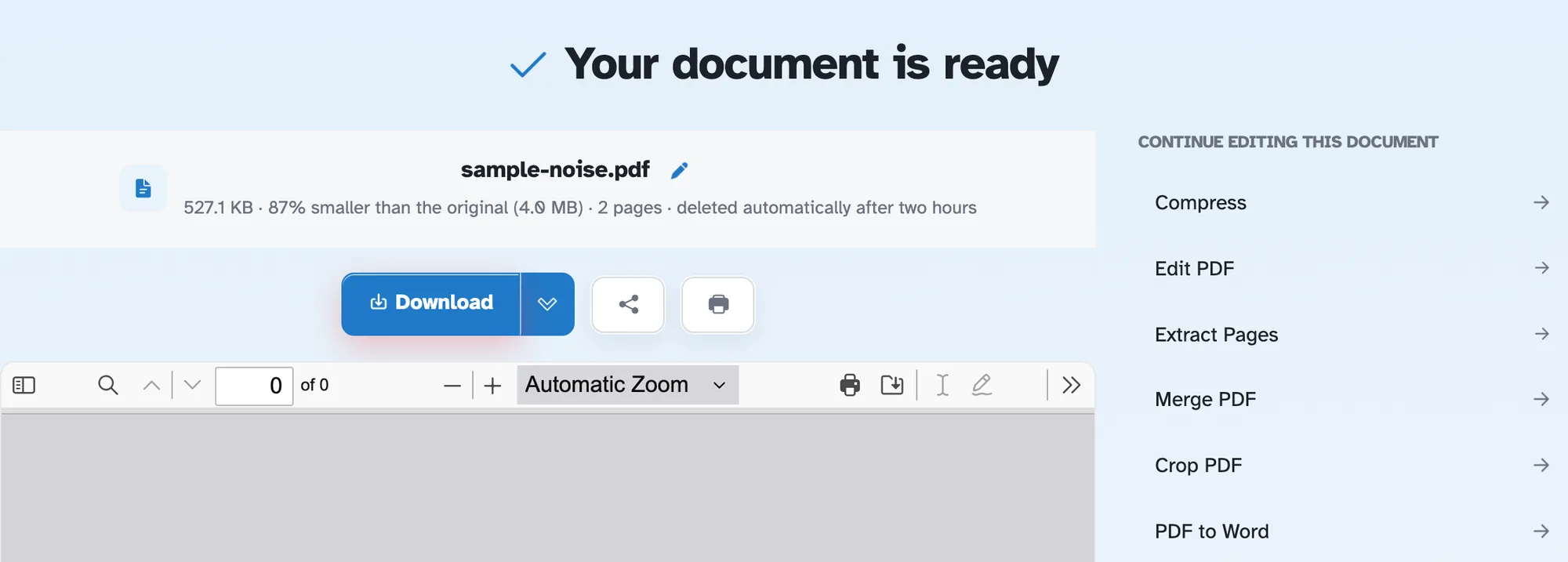
These are captures of the shipped Rifinit build, not mockups: what Compress PDF asks for and what it returns. Every workflow in this guide was checked on the same build.